Trigger PixelyChat from an Elgato Stream Deck, and let PixelyChat events run your own Streamer.bot actions. Both live under Setup → Integrations.
Before you start
Keep PixelyChat and the tool you are connecting running. Configure an Action Widget first if you want to control it from Stream Deck.
Connect an external control tool
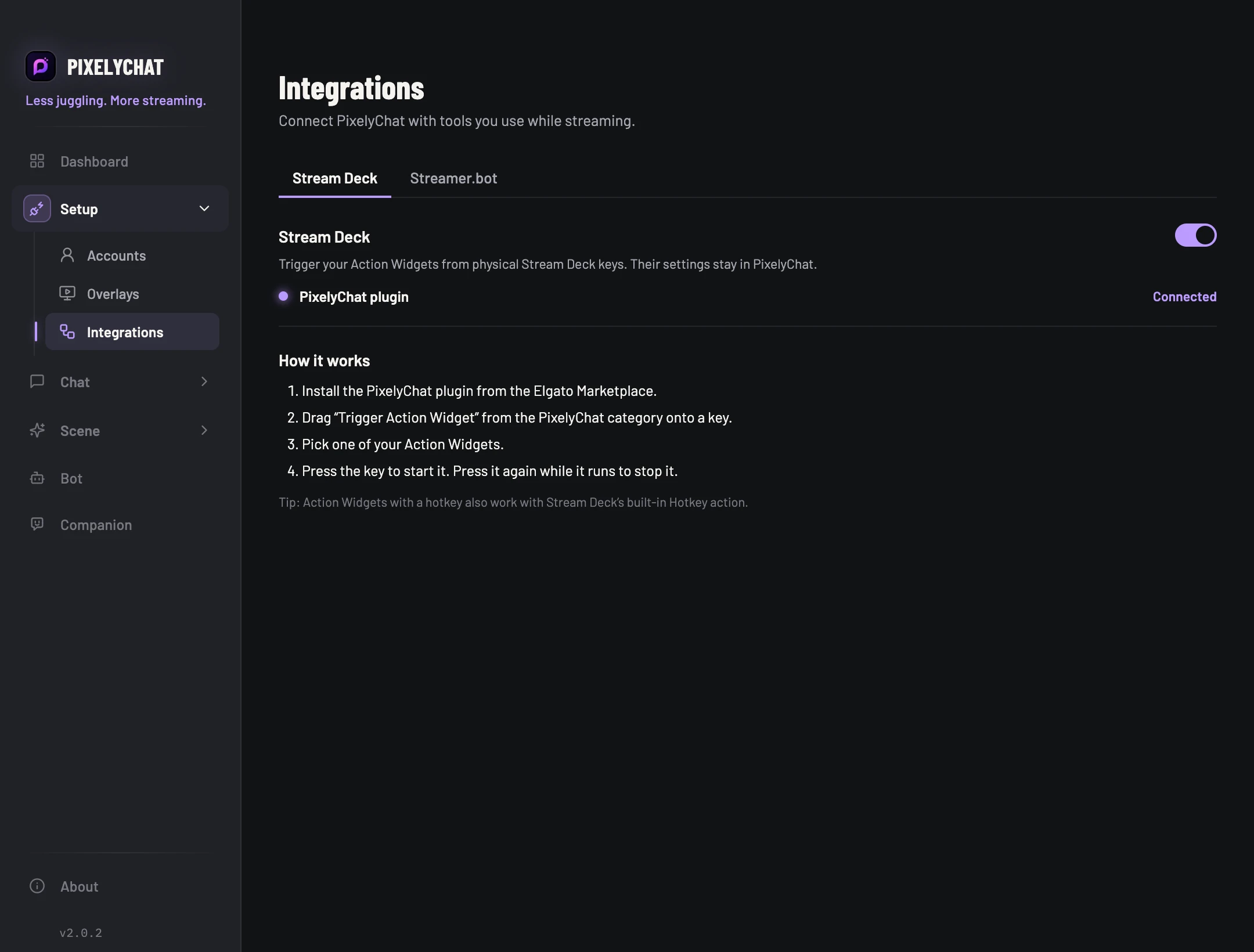
For Stream Deck, enable it under Setup → Integrations → Stream Deck. Install the PixelyChat plugin, add Trigger Action Widget to a key and select a widget.
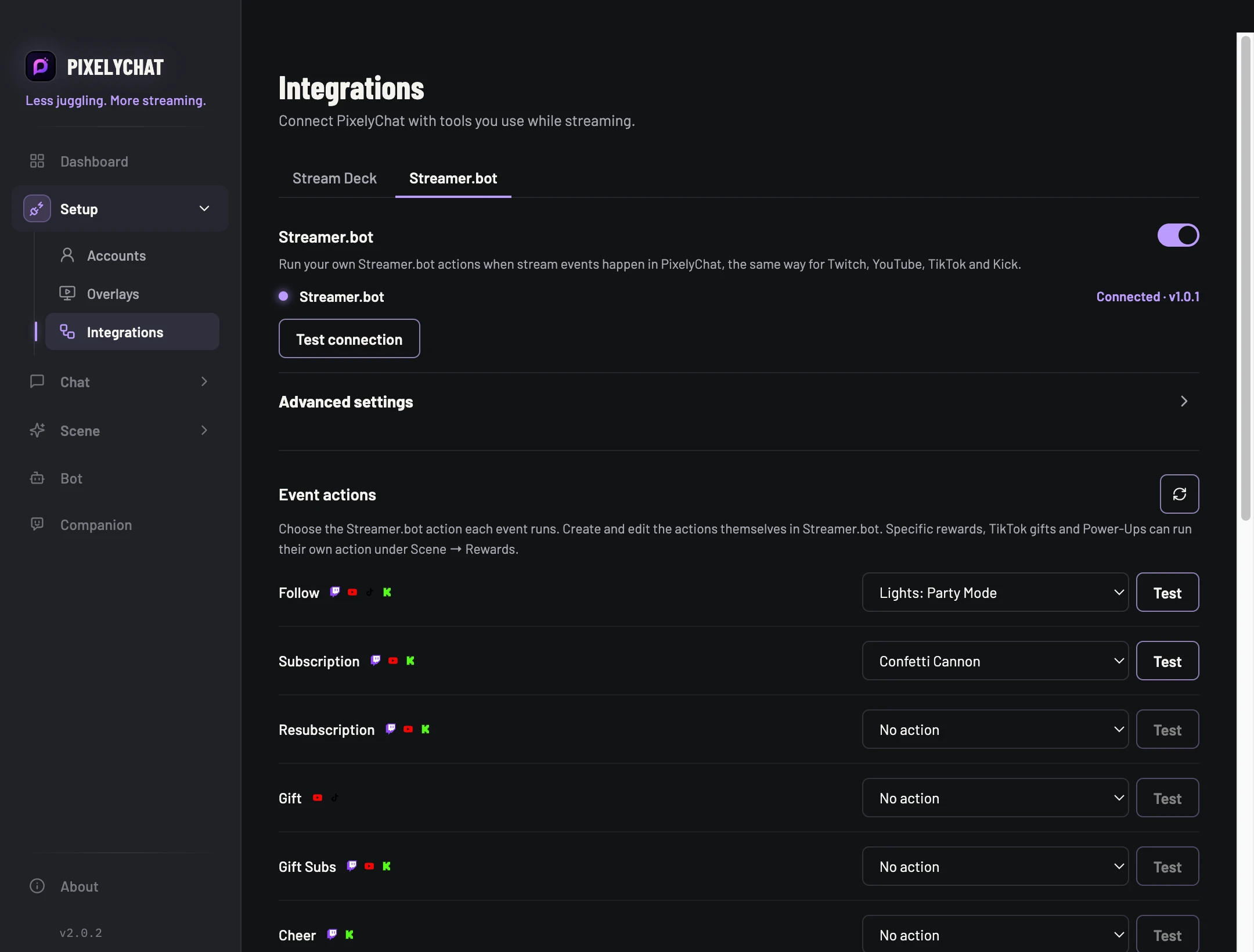
For Streamer.bot, enable its WebSocket Server, then enable Integrations → Streamer.bot in PixelyChat. Match any changed address, port or password in Advanced settings.
Assign one action and test it. For Stream Deck, check the key’s status and the scene output. For Streamer.bot, use Test on the event mapping.
Check the result
The selected action runs once and its result is visible. If the connection fails, compare both sides’ settings. If the wrong action runs, check the selected widget/event mapping before adding more controls.
Settings and further help
ELGATO STREAM DECK
Your Action Widgets on real keys
Install the PixelyChat plugin from the Elgato Marketplace, drag Trigger Action Widget onto a key and pick a widget. Press the key to start it and again to stop it. Keys show live status and timers; all settings stay in PixelyChat. In PixelyChat, turn on Stream Deck under Setup → Integrations → Stream Deck.
STREAMER.BOT
Events run your actions
Choose a Streamer.bot action for follows, subs, gifts, cheers, raids, chat commands and more, the same way for Twitch, YouTube, TikTok and Kick. Action Widgets can also run an action when they start or end, and single rewards can run their own under Scene → Rewards.
1
In Streamer.bot, turn on the WebSocket Server (Servers/Clients → WebSocket Server).
2
In PixelyChat, open Integrations → Streamer.bot and switch it on.
3
If you changed the address, port or password in Streamer.bot, enter the same under Advanced settings.
4
Pick an action for each event and use Test to run it once.
IntegrationsSTREAM DECKIntegrationsSTREAMER.BOT
Arguments for your actions
Every action receives details such as the user name, platform and amount, which you can use in Streamer.bot like %userName%. The full list is shown in the Streamer.bot tab.
 PixelyChat