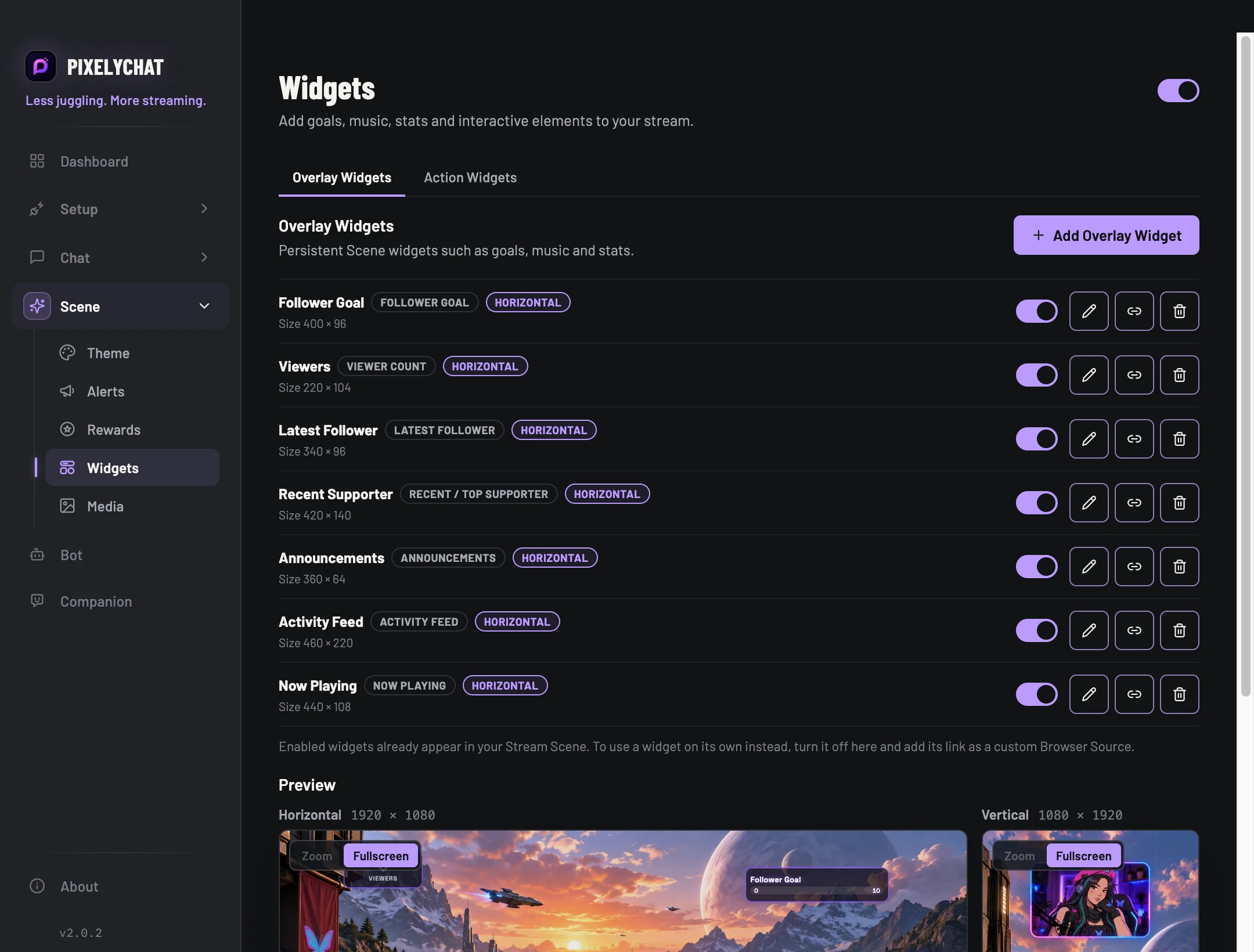
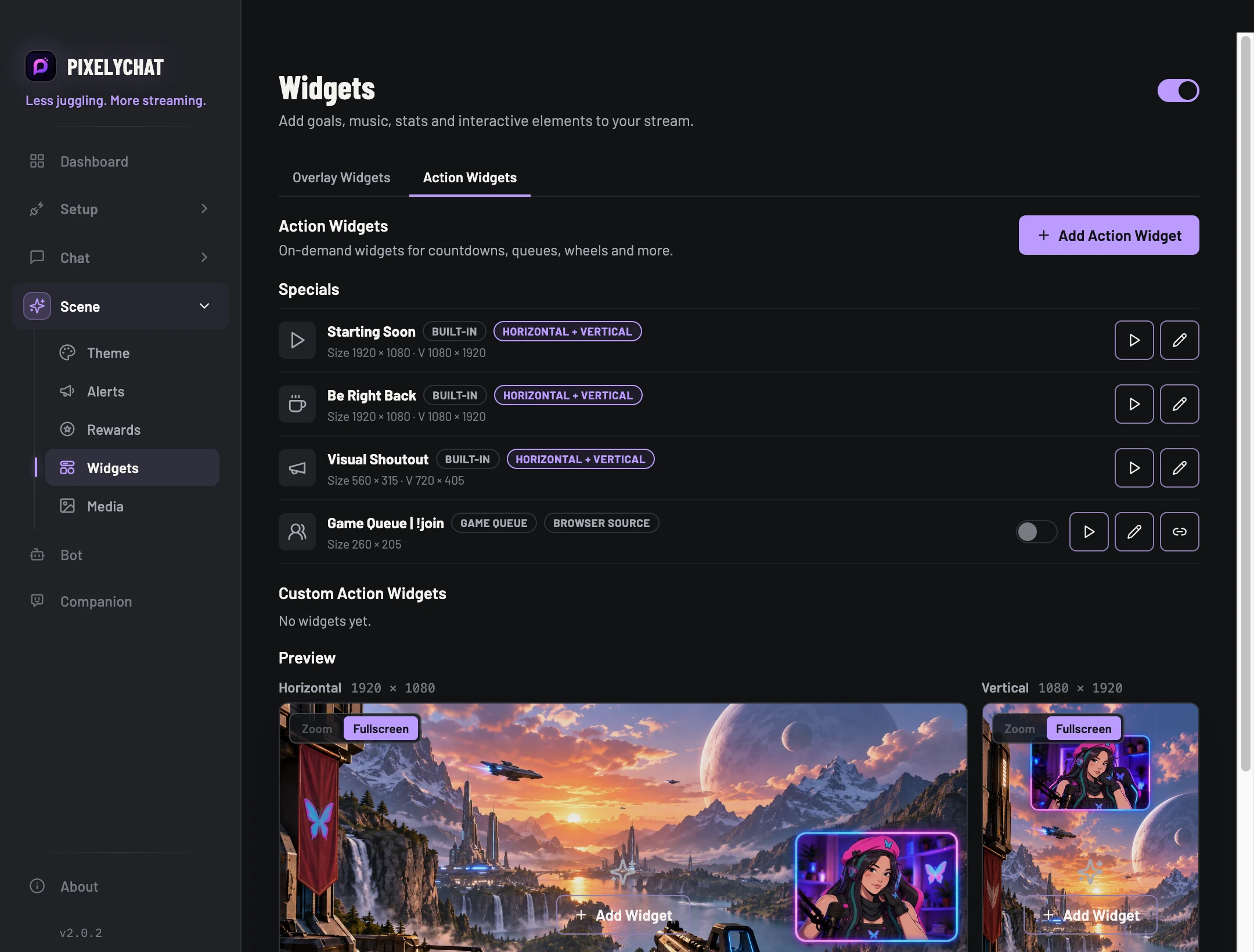
Overlay Widgets stay on screen. Action Widgets appear or change when you trigger them. Specials cover the bigger scene moments.
Before you start
Add Stream Scene to your streaming software first. Choose a single widget to configure before building a larger scene.
Add an overlay widget
Open Widgets and choose the overlay widget you need, such as a goal, viewer count or announcement. Enable it and open its editor.
Configure the widget’s data and appearance. For a goal, check its starting value and target rather than judging only the preview number.
Save the editor changes, position and resize the widget, and check it in the matching horizontal or vertical scene in OBS.
Check the result
The widget is readable and shows the intended data. If it is missing, check enablement, orientation and source visibility. Interactive widgets have separate guides for Poll, Spin Wheel and Game Queue.
Settings and further help
OVERLAY WIDGETS
Information that stays visible
Use goals, stats, music and rotating information as reusable pieces in the Stream Scene.
Follower GoalSubscriber GoalDaily SubsGifts GoalTikTok Likes GoalViewer CountLatest FollowerRecent / Top SupporterTikTok Top LikesActivity FeedAnnouncementsNow Playing
ACTION WIDGETS + SPECIALS
Things you trigger
Run interactive and full-screen actions from Widgets or the Dashboard.
CountdownSpin WheelStopwatchGame QueueHypeMedia PlayerVisual ShoutoutBe Right BackStarting Soon
WidgetsOVERLAY WIDGETSWidgetsACTION WIDGETS
Media Player
Plays a sound, an image or video, or both at once, whenever you trigger it: from the Dashboard, a hotkey, Stream Deck, a chat command or a reward. Move and resize it in the preview, loop it or stop it after a set time, remove a green-screen background, and set the video and sound volume separately.
Position & preview
Widgets use separate horizontal and vertical scene layouts. Resize and position them in the PixelyChat preview; the Stream Scene browser source then uses the matching orientation in OBS.
 PixelyChat