 PixelyChat
 Viewer interactions
Run a Countdown
Run a triggered stream countdown.
Before you start
Enable Countdown and add the Stream Scene Browser Source. Set up its appearance before using it live.
Run a countdown before an activity
- Open the countdown editor, set the duration and any display or sound options you need, then save.
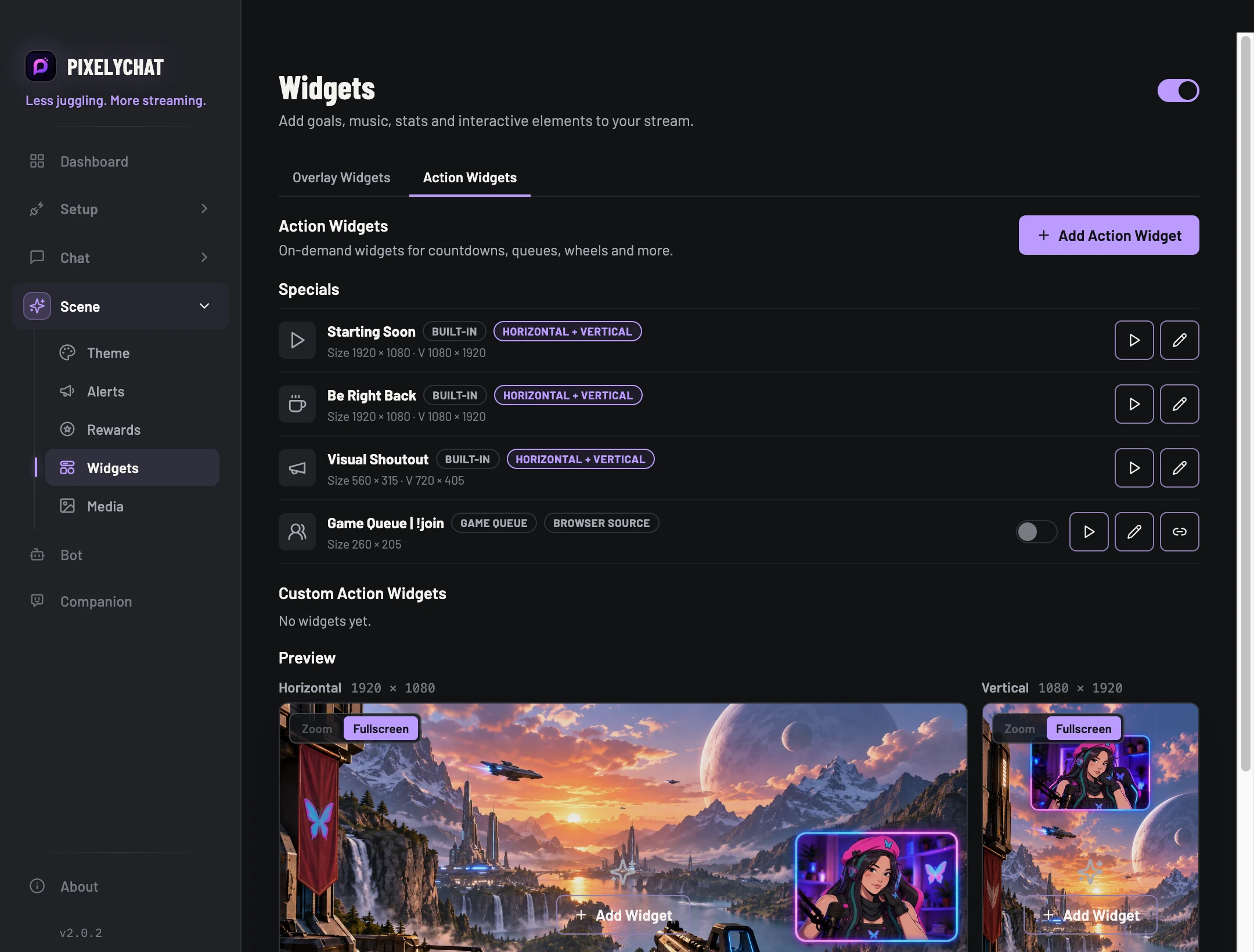
- Position the timer in the scene preview. Start it from Dashboard’s Action Widgets or Pilot.
- Watch the timer count down in OBS, then check what happens at zero. Use a short duration for your first test.
Check the result
The timer and any configured finish behavior work as expected. If you cannot hear the end sound, check the selected media and audio path. If the timer is missing, check widget enablement and source visibility.