Platforms
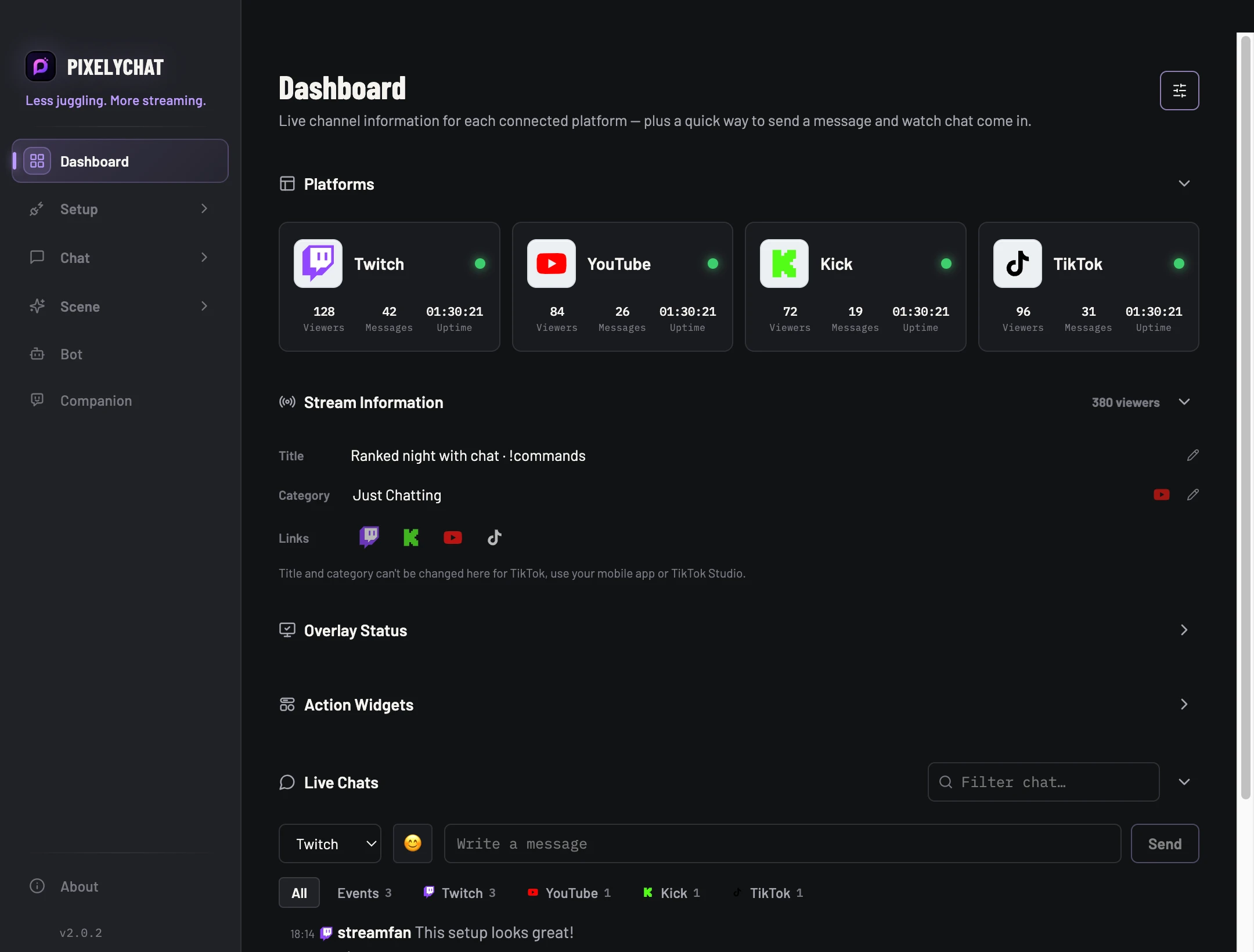
See which accounts are connected, whether a channel is live, current viewers and stream information.
 PixelyChat / Manual
Getting started
The Dashboard combines channel status, chat, stream controls, overlay health and the actions you may need while live.
Connect your platforms first. Configure and enable the widgets you plan to operate before arranging your Dashboard.
The widget state updates and the scene shows the expected output. If the control is missing, enable the widget in its editor. If the control works but OBS is empty, check the Browser Source and active scene. Recent Activity can explain skipped actions.
See which accounts are connected, whether a channel is live, current viewers and stream information.
See whether Chat Overlay, Stream Scene and Companion browser sources have been detected. “Inactive” is normal when the OBS scene is not loaded.
Run configured countdowns, wheels, queues and other action widgets without opening the Widgets page.
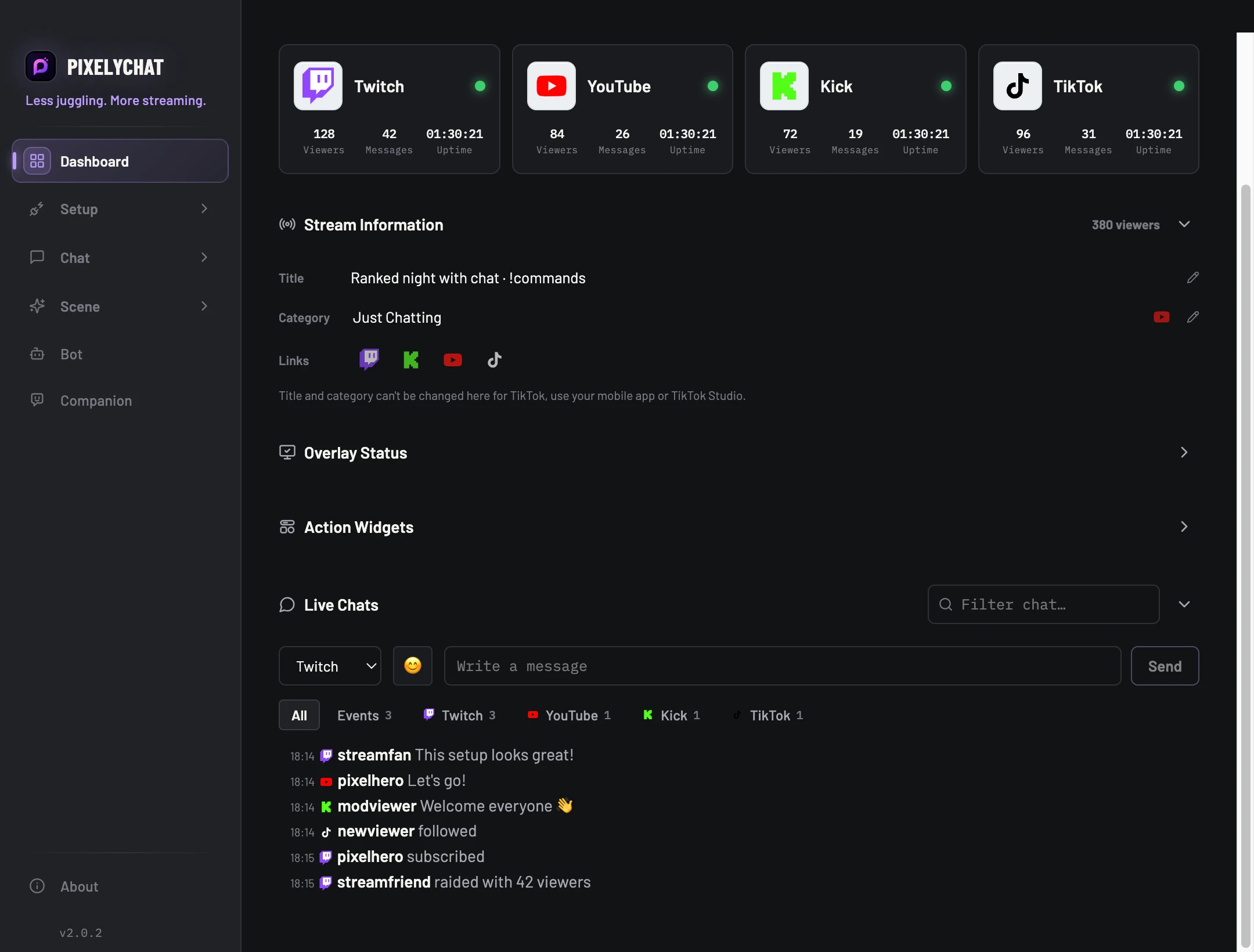
Read all connected chats in one place, filter by platform or activity, send supported messages and moderate directly.
See follows, subs, gifts and the recent actions performed by PixelyChat features — including skipped actions and why.
Hide Dashboard sections you do not need. Your working view can stay compact during a stream.