Setup
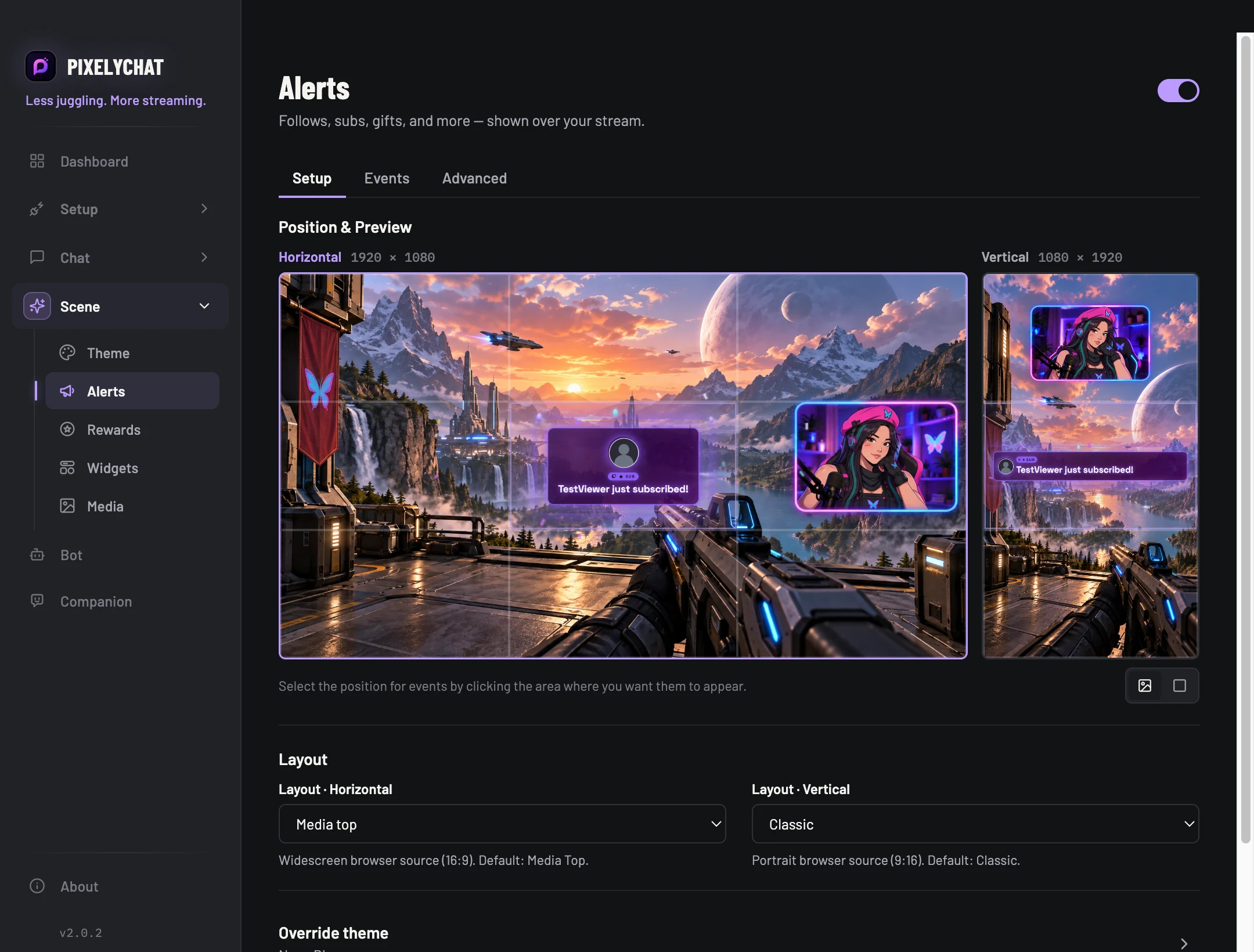
Choose the theme, position and preview for the alert layer. Use the Scene Theme or override it for Alerts only.
 PixelyChat / Manual
Stream appearance
Build the visual and audio reaction for follows, subscriptions, gifts, raids and other supported stream events.
Connect the platform that supplies the event, enable Alerts and add the Stream Scene Browser Source to your scene.
Your test alert appears and sounds as intended. A test confirms presentation, not delivery of a real platform event. If real alerts are missing, check connection and event enablement. If several alerts overlap or lag, review timing and queue settings.
Choose the theme, position and preview for the alert layer. Use the Scene Theme or override it for Alerts only.
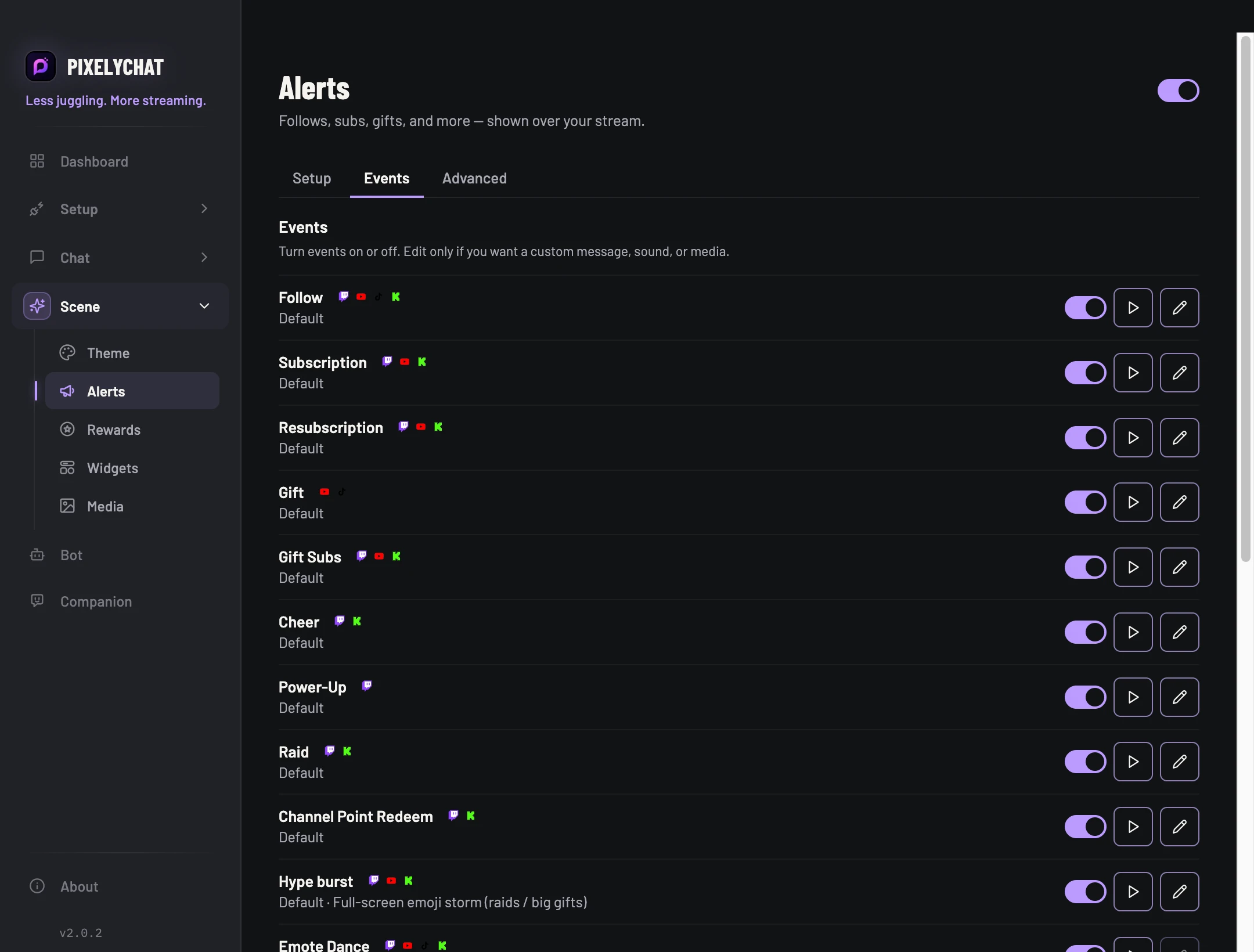
Turn event types on or off and edit event-specific text, visuals and audio. The available list adapts to the connected platforms.
Control behavior such as timing and queue handling so bursts of events play cleanly instead of competing on screen.
Alerts render inside the Stream Scene browser source. Rewards, overlay widgets and Specials use that same scene, so one OBS source can carry the whole visual layer.